Help centre › Guest pages
Guest pages
The pages your guests see, with your cafe's name, logo and colours: the menu, the TV order board and track my order. They update by themselves from the kitchen and your menu.
Your home page
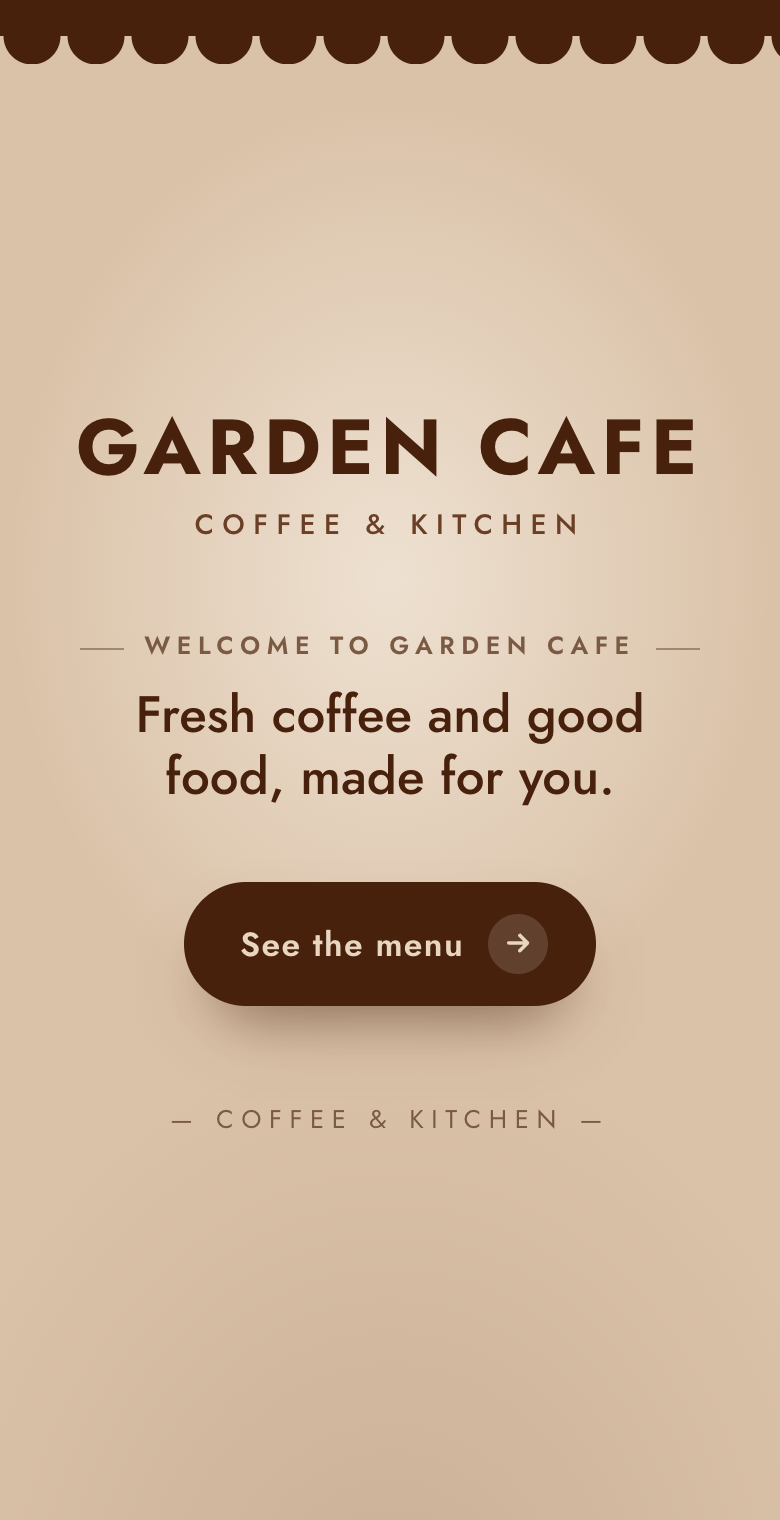
…/your-cafe/ is your cafe's welcome page for guests: your logo, your welcome line and one big
See the menu button. Tapping it opens a little menu book that flips open into your menu. Guests
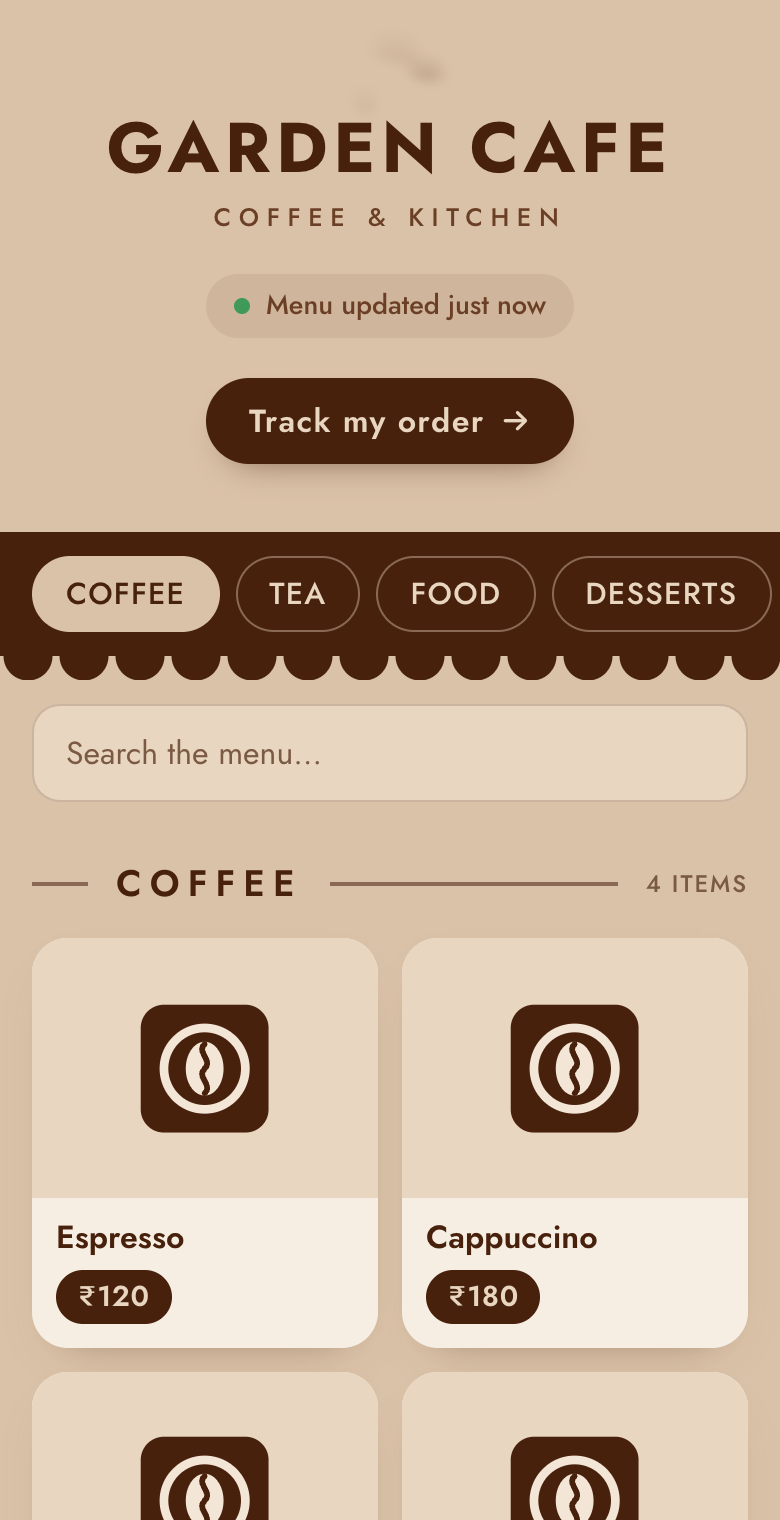
find Track my order on the menu page. You can add a line over the welcome and up to 3 numbers that count up
("40+ Dishes").
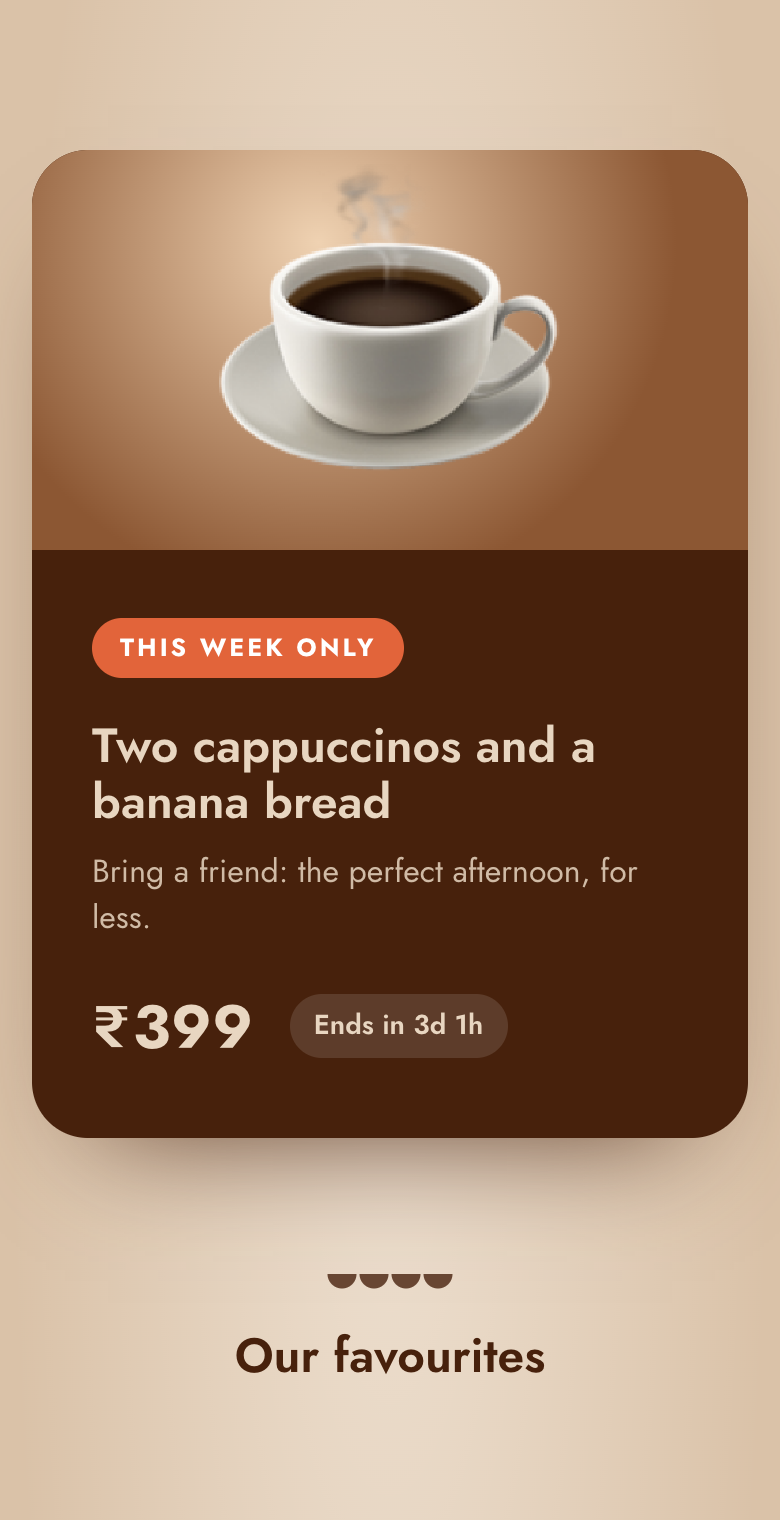
Under the button you can add sections: a hot offer with a countdown, our favourites (dishes with their photos and prices), our story, opening hours ("Open now") and find us (directions, call, WhatsApp, Instagram). They slide in gently as guests scroll. Choose the look and write the sections on the manager page (Home page).
The menu page
…/your-cafe/menu/: your menu by category, with prices and photos. Changes from
Manage menu (a new price, a photo, sold out) show within a minute, without reloading.
The TV order board
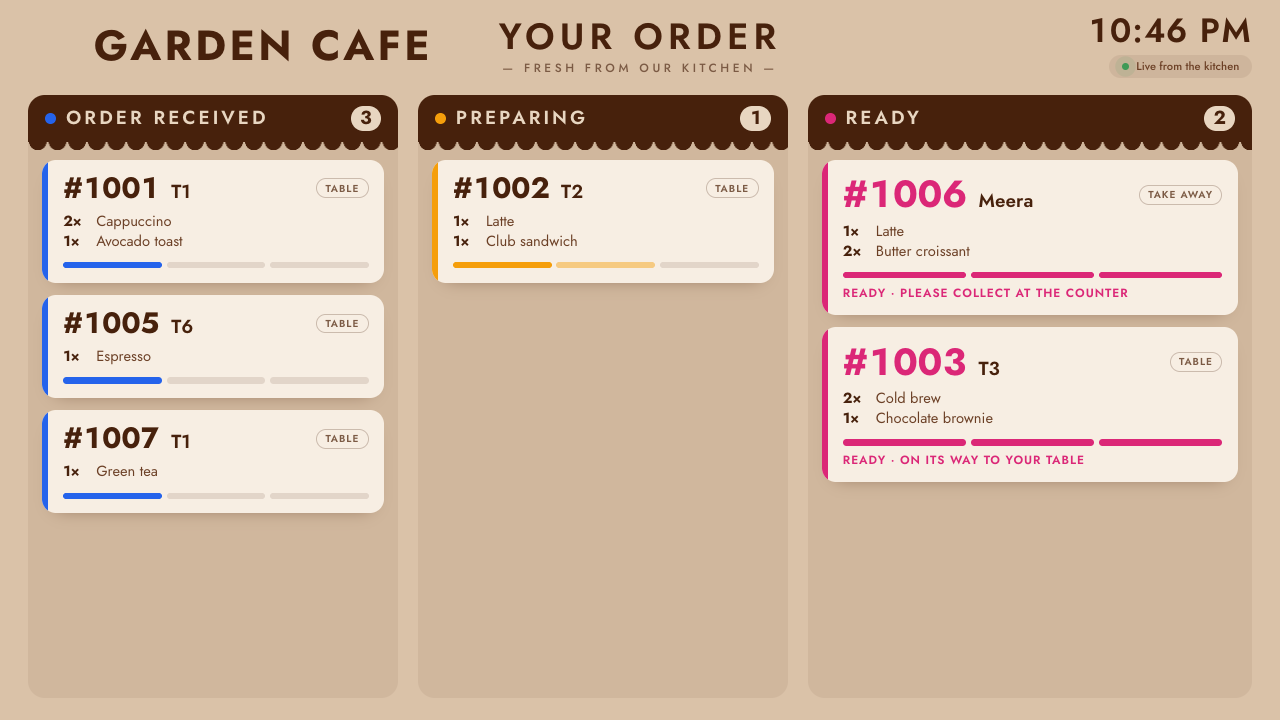
…/your-cafe/board/ on a TV in the cafe shows each order as Order received, Preparing and
Ready, by number, with the table or the take-away name. Orders move within seconds of the kitchen tapping.
- Open the address in the TV's browser (or a stick or laptop plugged into the TV).
- Click, or press OK on the remote, on Start the order board: it goes full screen and keeps the screen on.
Turned off under Customer web pages, the TV shows your logo instead.
Track my order
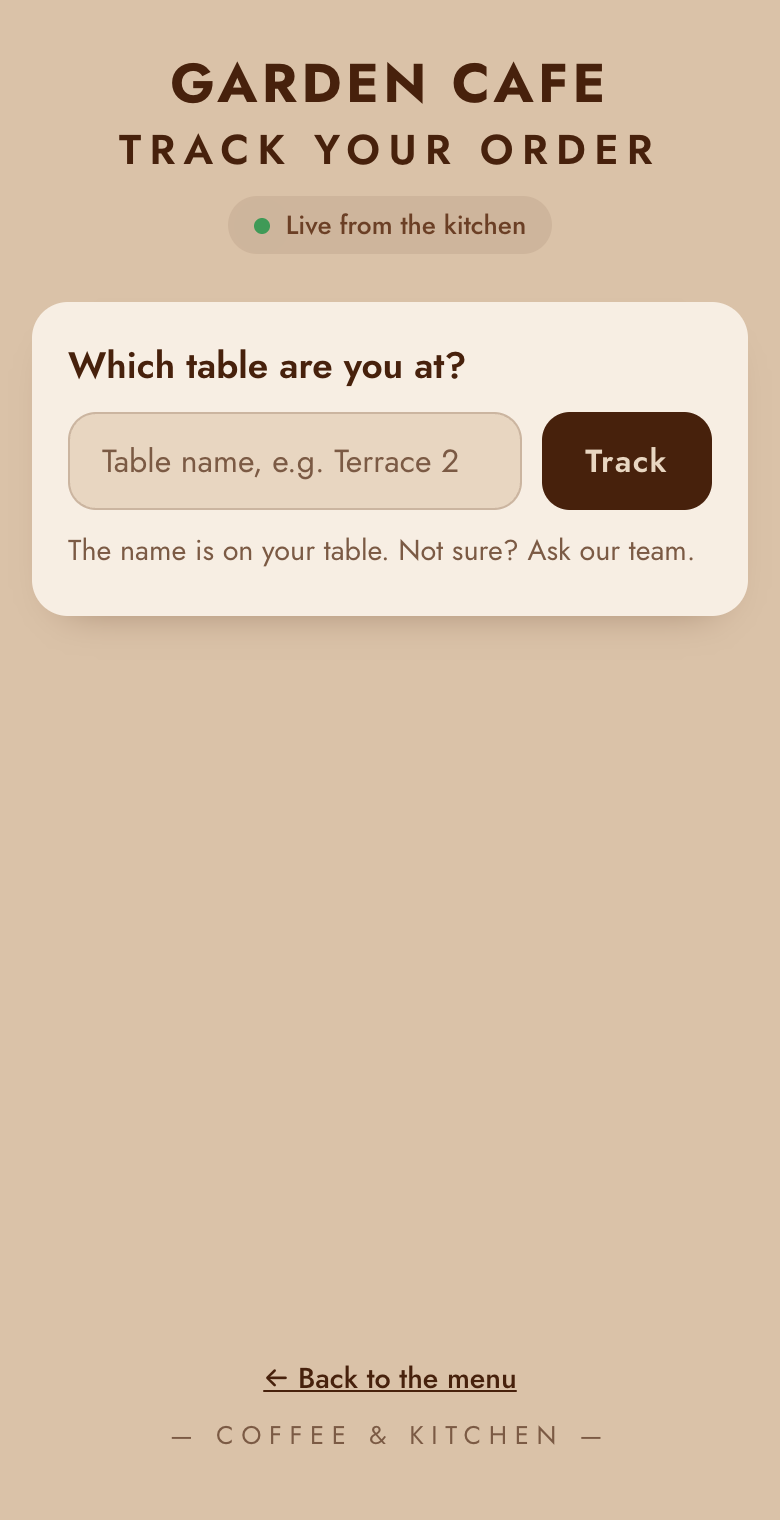
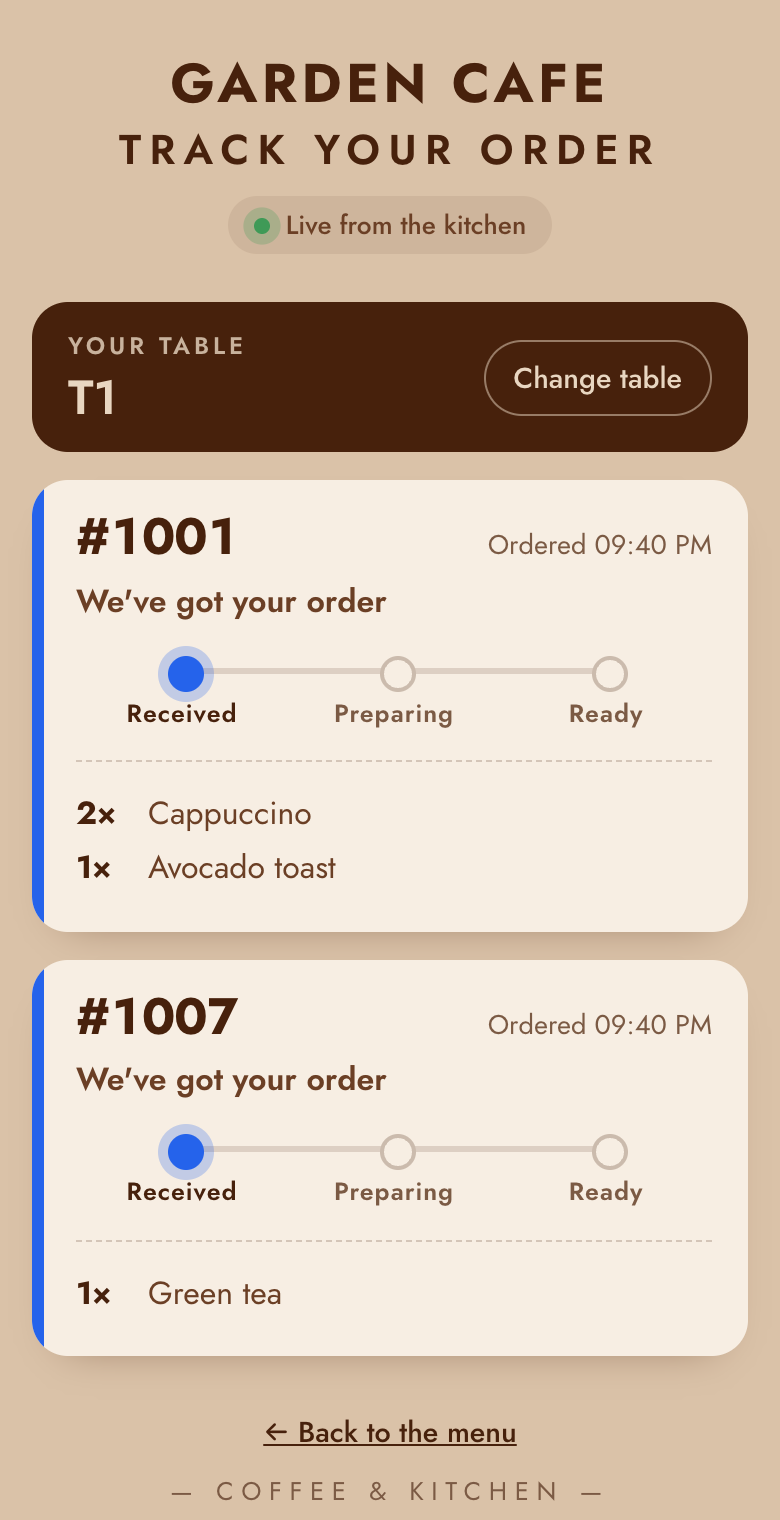
…/your-cafe/track/: guests type the table name (as written on the table, e.g. T1 or
Terrace 2) and follow each order: received, preparing, ready. It's also a button on the menu page.
Don't want it? Switch off Track my order page under Customer web pages; the button leaves the menu page within a minute.
Your name, logo and colours
The Tablepour team sets your logo and colours when your cafe is added. To change them, email us the new logo (a PNG or SVG) and the colours you'd like; the pages and apps pick them up by themselves. Dark theme is yours to switch, under Customer web pages.